Blender is a hotkey-driven application. Fighting that is the slowest possible way to use it — but memorising a 200-item cheat sheet does not work either, because you forget everything you do not use daily.
Here is the set that pays for itself, grouped by when you actually need it.
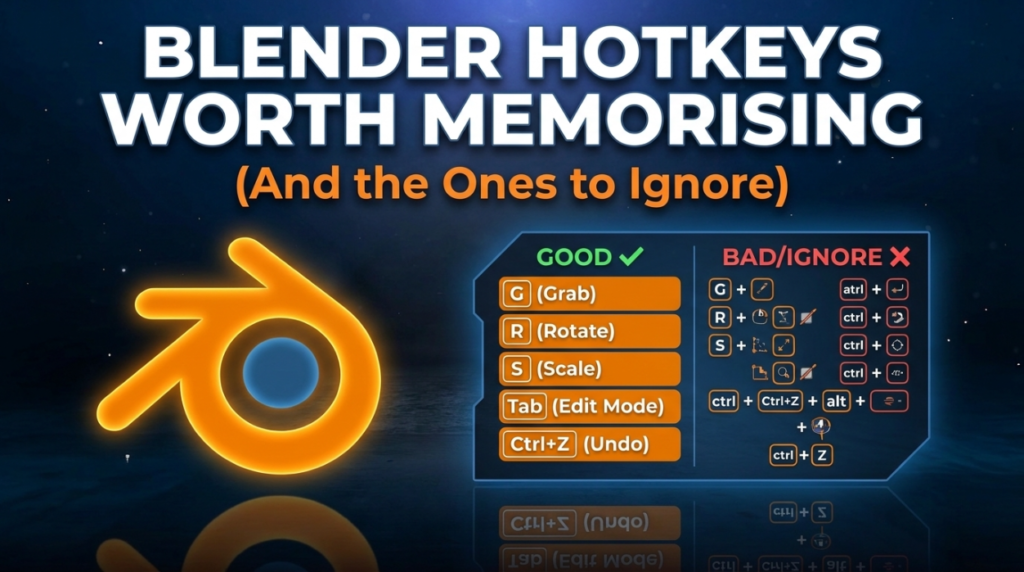
The Ten You Cannot Work Without
- G / R / S — grab, rotate, scale. Follow with X, Y or Z to lock an axis, or type a number for an exact value.
- Tab — toggle Edit Mode
- Shift+A — add object
- Shift+D — duplicate · Alt+D — linked duplicate sharing mesh data
- Ctrl+Z / Ctrl+Shift+Z — undo, redo
- Numpad . — frame the selected object
Edit Mode
- 1 / 2 / 3 — vertex, edge, face select
- E — extrude · I — inset
- Ctrl+B — bevel, then scroll for segments
- Ctrl+R — loop cut, scroll for count
- Alt+Click — select an edge loop
- Alt+Z — X-ray toggle, essential for selecting through geometry
Sculpt Mode
- Shift (held) — temporary smooth brush. The most-used function in sculpting.
- Ctrl (held) — invert the current brush
- Ctrl+R — voxel remesh
- F — brush size · Shift+F — brush strength
The Ones People Find Far Too Late
- Ctrl+A — apply transforms. Applying scale prevents a huge number of downstream problems in modifiers, physics and export.
- Ctrl+Alt+S — save incrementally rather than overwriting
- Shift+Right-click — place the 3D cursor · Shift+C — reset it and frame everything
- Ctrl+Numpad+ — grow selection
- F9 — reopen the last operator panel after you have clicked away
How to Actually Learn Them
Do not print a cheat sheet. Pick three shortcuts you currently do through menus and force yourself to use the keys for a week. Then three more.
Speed in Blender is not talent, it is accumulated muscle memory — and it compounds across every hour you spend in the software afterwards.
Customising Them
Edit, Preferences, Keymap lets you rebind anything. Worth doing if you are coming from Maya or Max and certain habits will not die — though learning Blender’s defaults makes following tutorials far less painful.
More Blender resources in the 3DxDEV Library.