Effective Blender weight paint fixes start with a diagnosis. A collapsing shoulder can come from the weights, an unsuitable joint position, limited deformation geometry or a rest-pose mismatch. Identify the cause before painting more influence onto the symptom.
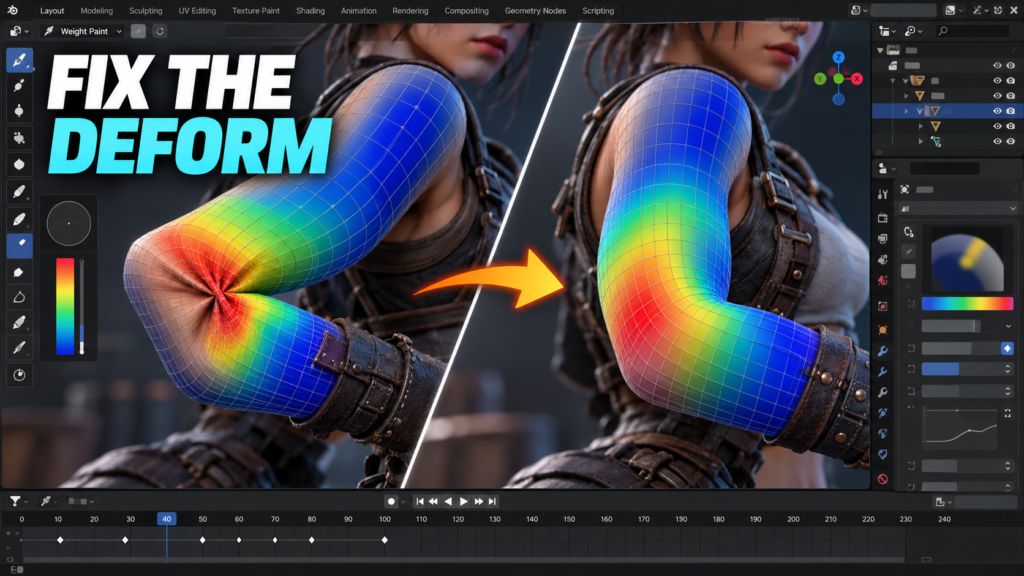
Use this sequence on a duplicate file. Change one variable at a time and keep the same comparison pose visible. That makes it possible to tell whether the repair improved the mesh or merely moved the defect elsewhere.
Separate a rig problem from a skinning problem
Begin with a mild pose. Confirm that the intended armature deforms the mesh and that you are editing the expected vertex groups. Check for an accidental second armature modifier or a mesh bound to an old rig. If several body regions move incorrectly at once, inspect the relationship between the mesh and skeleton before painting individual vertices.
Return to the rest pose. Check whether the shoulder joint sits where your character should rotate. A badly placed pivot cannot always be rescued with smoother weights. If the skeleton must change, plan the impact on existing animation rather than changing the production rest pose casually.
Use the visible symptom to pick the next test
| Symptom | Inspect first | Useful comparison pose |
|---|---|---|
| Shoulder caves inward | Joint placement, torso/upper-arm transition and topology | Arm raised sideways, then forward |
| Elbow twists like a wrapper | Bone orientation, twist distribution and weights | Bent elbow with gradual forearm rotation |
| A few vertices follow a distant bone | Unexpected vertex-group membership | Move the suspected bone alone |
| Clothing lags behind the body | Different influence transitions and bind relationship | Deep bend with both meshes visible |
Treat these as diagnostic starting points. The same visual defect can have more than one cause, especially after retargeting or skeleton replacement.
Repair the smallest region that explains the defect
For a shoulder, inspect how the torso, upper arm and any relevant shoulder bones share the transition. Smooth a narrow region and test both raising and lowering the arm. A perfect overhead reach that ruins the relaxed pose is not a complete repair.
For stray vertices, identify the unexpected group and remove the unwanted membership deliberately. Check the remaining influences before normalizing. Blender’s weight tools include cleanup and normalization operations; inspect their scope and locked-group behavior rather than applying a whole-mesh command without reviewing the result.
For an elbow, compare a bend-only pose with a twist-only pose. If the bend works but rotation fails, inspect the orientation and distribution of twist. More blur in the weight map may soften the symptom while leaving the underlying problem unresolved.
Finish with a pose matrix and an export check
Make a compact test action containing neutral, crouch, reach, elbow bend and forearm twist poses. Evaluate silhouette and joint volume from more than one camera angle. Include any extreme motion the game actually needs, such as a climbing reach or a two-handed grip.
Then export a short clip and repeat the visual check in the destination engine. A deformation that looks correct in Blender may depend on a modifier or authoring setup that your interchange pipeline does not carry over. Keep a before/after image and the source-file version so another artist can reproduce the repair.
For a broader workflow change, use our Rigify migration checklist. Fixing weights is one acceptance gate, not proof that the whole export pipeline is ready.
Frequently asked question
Will automatic weights fix a damaged shoulder?
They can provide a starting point, but they do not guarantee suitable joint placement, topology or deformation. Test the cause before replacing carefully edited weights.
Official references and scope
Sources checked October 18, 2026. Interface names and capabilities can change; use the documentation for your installed version. The workflow above is an editorial checklist, not a published hands-on benchmark.